Create a SIM Purchase Order (PO)
Note:
The Purchase Orders section of the Enterprise Portal is only available in Account context.
Overview
Enterprise Account Users can order SIM Cards and SIM Chips from the operator by using the SIM Purchase Order module. There are many different SIM Cards and SIM Chip types, which differ in format, hardware/software features, and branding.
These, along with their predefined settings and prices are all referred to as SIM Sales Products within the Purchase Order environment. SIM Sales Products are defined by the operator, yet Account Administrators determine the final Access Rights to the SIM Sales Products.
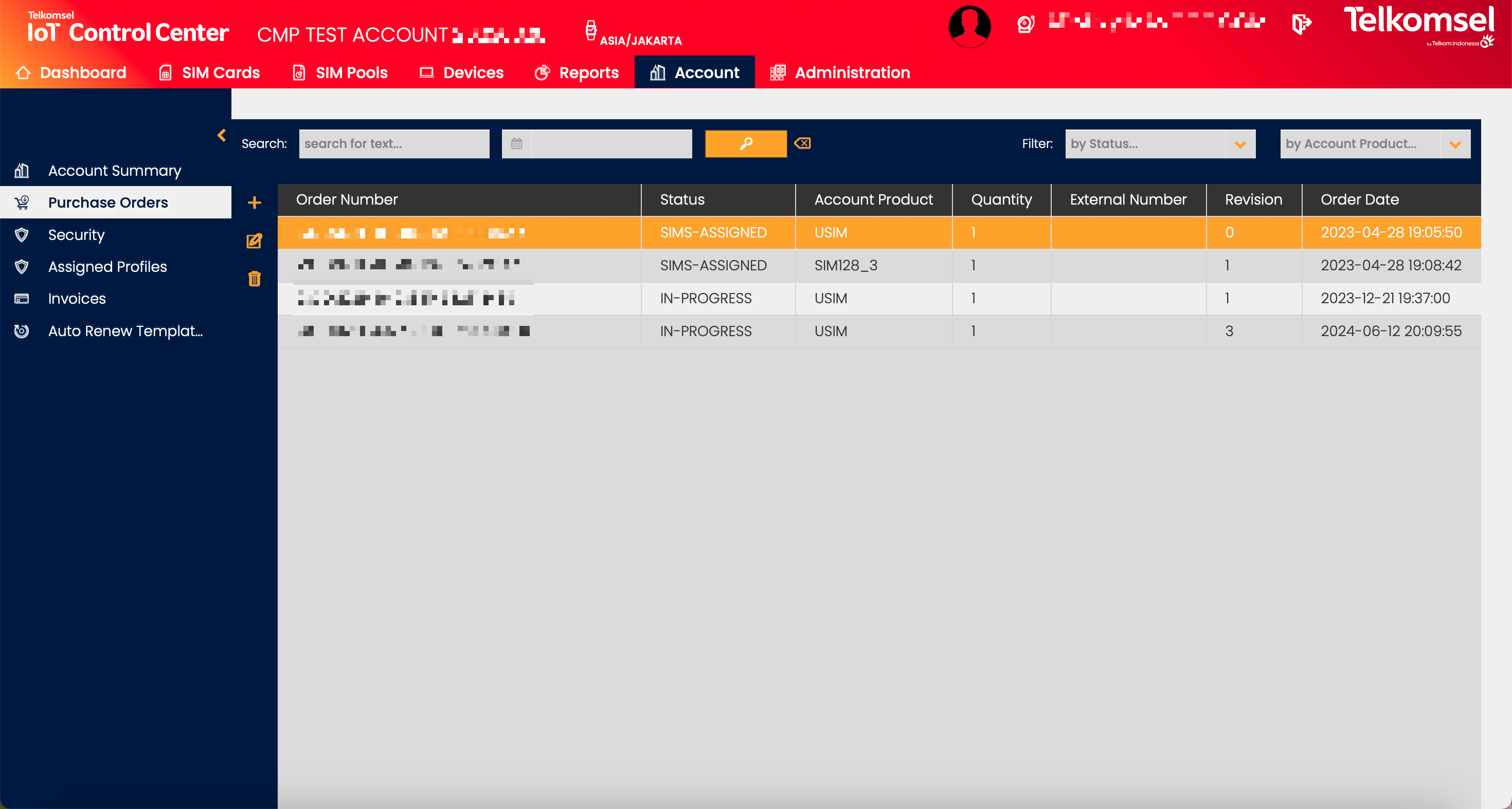
Search for Purchase Order
The search option of the Audit Log module allows Users to retrieve a list of Audit Logs by entering text into the Search field.
Search results may be filtered with the criteria given in the Search bar.
Filters:
- Order Date
- Status
- Account Product
The inserted search and filter criteria can be removed by clicking on the Clear search  icon.
icon.

Purchase Order Process
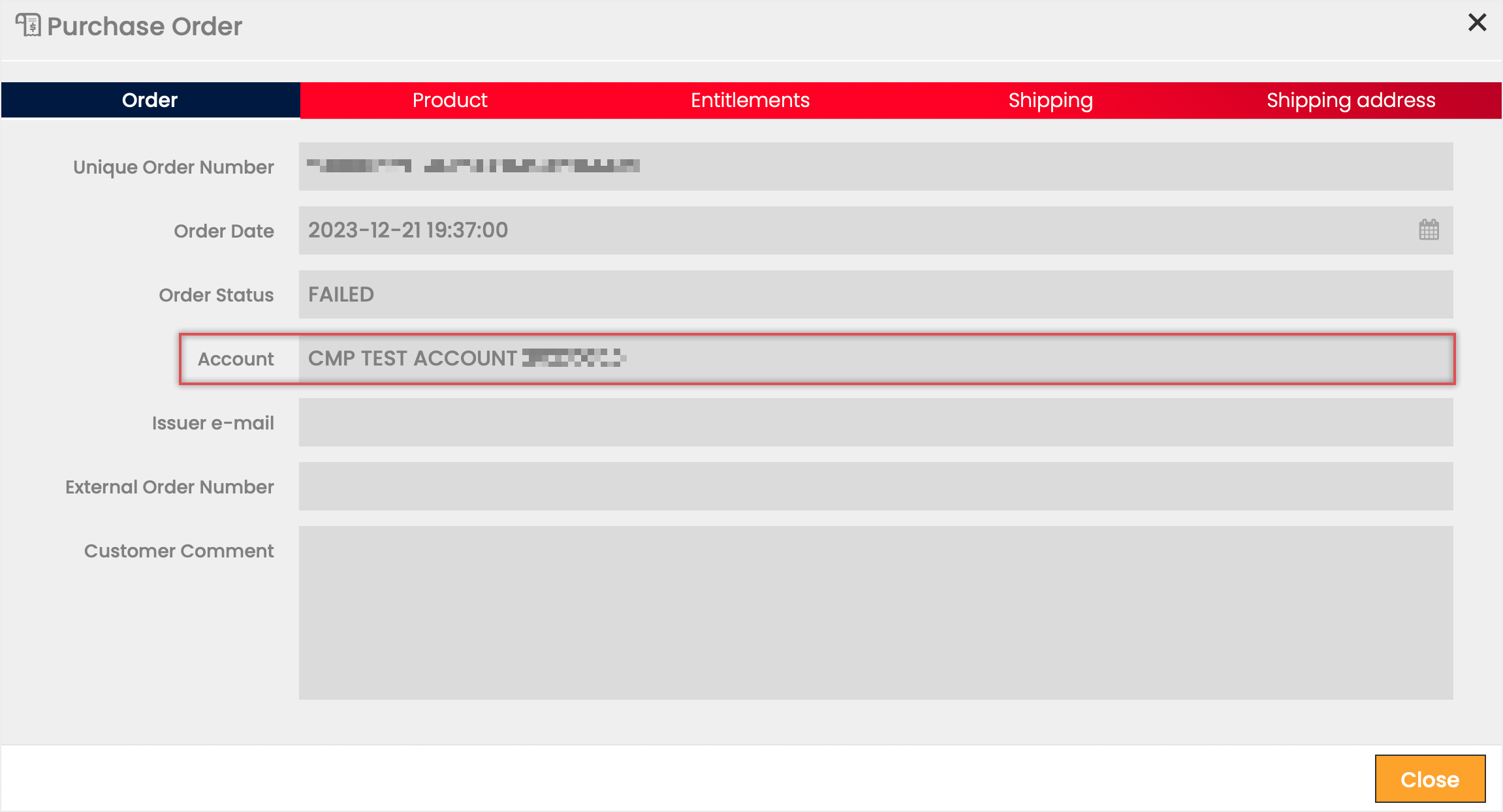
The progression of a Purchase Order is a process that relies on both the Enterprise Portal User and a Service Provider Agent, who services the PO and SIM Sales Products within the Resource Manager. The Resource Manager status of any PO can be seen within the Edit PO feature.
The following table describes the PO progression from beginning to end.
Enterprise Portal User | EP Status | Service Provider Agent in Resource Manager | RM Status |
|---|---|---|---|
Create a PO Draft that can be modified as many times as needed. | DRAFT | PO is visible in the RM as soon as it is saved as a Draft. Service Provider Agent may edit any details if necessary. | DRAFT |
Submit the PO when all details have been defined. The PO is handed over to the Service Provider Agent who performs plausibility checks (product, quantity, etc.). | SUBMITTED | PO may also be submitted from the RM if necessary. | SUBMITTED |
Submit a new PO or consult with the Service Provider agent who can re-open a rejected PO. Purchase orders cannot be re-opened from the Enterprise Portal. | REJECTED | Reject PO - When an issue is identified within a PO submission, the Service Provider Agent can reject the order. The Service Provider Agent may consult with the Purchaser to reopen the PO. | REJECTED |
When the status changes to IN-PROGRESS, the User will see the RM status of ACCEPTED and should continue monitoring RM Status for updates. | IN-PROGRESS | Accept PO - The Service Provider Agent can accept a proper Purchase Order and begin with SIM assignment. | ACCEPTED |
The EP status remains IN-PROGRESS because the PO itself is still viable. User must wait for the reattempt of the validation and provisioning process. | IN-PROGRESS | Some part of the validation and provisioning process was unsuccessful. Service Provider Agent must reattempt the validation and provisioning process. | FAILED |
IN-PROGRESS | The validation and provisioning process is active. There are no failures to this point, and this status will display during the validation stages 'SIM Creation' through 'In Provisioning' | ASSIGNMENT ONGOING | |
User may begin working in account with SIM Product's logical details: ICCID, IMSI, MSISDN, APN, Service Profiles, etc. | IN-PROGRESS | The Service Provider has validated, provisioned, and assigned the SIM Sales Products. All logical information for the SIM Sales Products has been assigned to the EP purchaser account. | READY |
IN-PROGRESS | The Service Provider Agent confirms shipping details such as tracking numbers and delivery dates for any physical SIM cards. | SHIPPED | |
Confirm that all physical and logical components of the PO have been received. At this point, the PO process is completed. User can enter the PO Edit feature and click Close to transition the PO into its final status: CLOSED. | CLOSED | SHIPPED |
Using the Edit Purchase Order feature to check the Resource Manager status.
Create a Purchase Order
There are two steps required to submit a Purchase Order to the Operator:
- Defining the minimum required details to create a DRAFT.
- Submitting the PO for acceptance.
Note:
Define all details before submission. A Purchase Order submitted with minimal details is likely to be rejected by the operator.
To create a Purchase Order:
- Click on the Add
 icon.
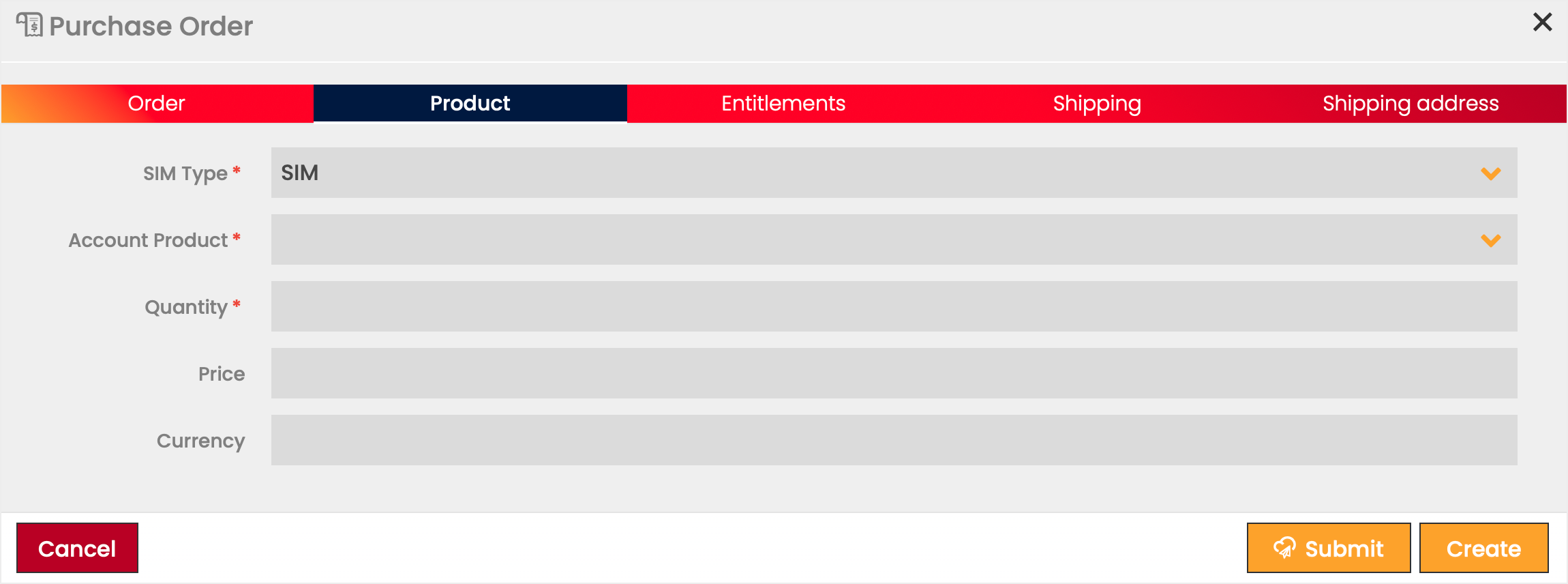
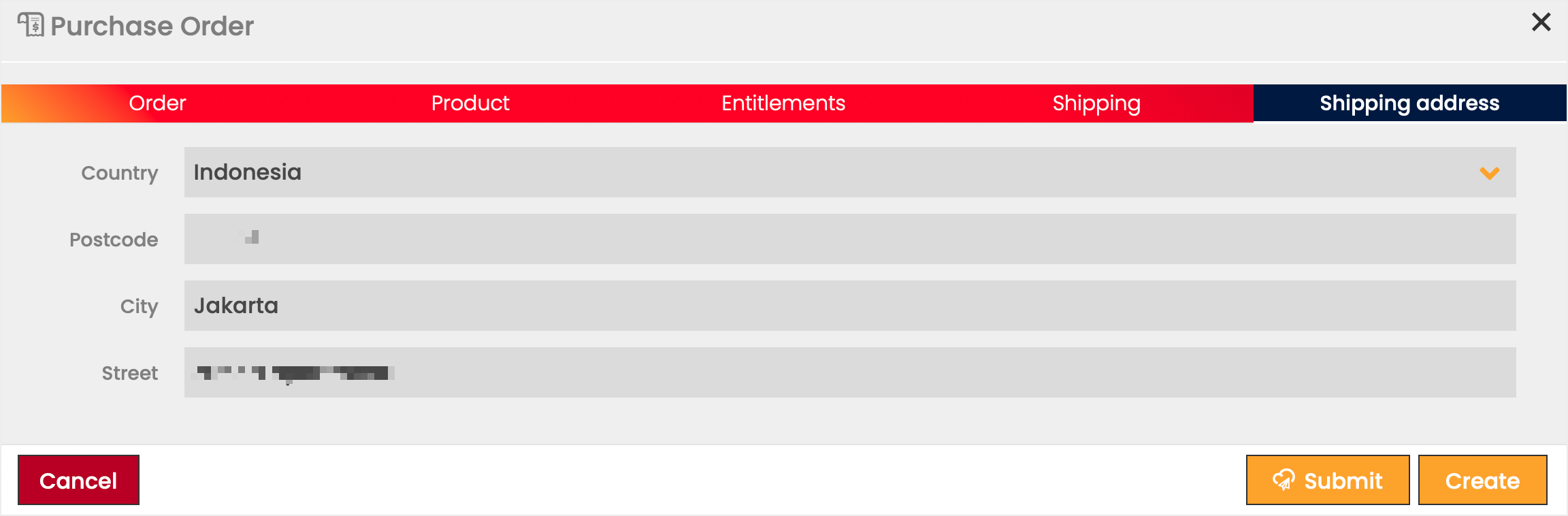
icon. - Define the information fields for the Purchase Order.
Fields marked by a red asterisk are mandatory.
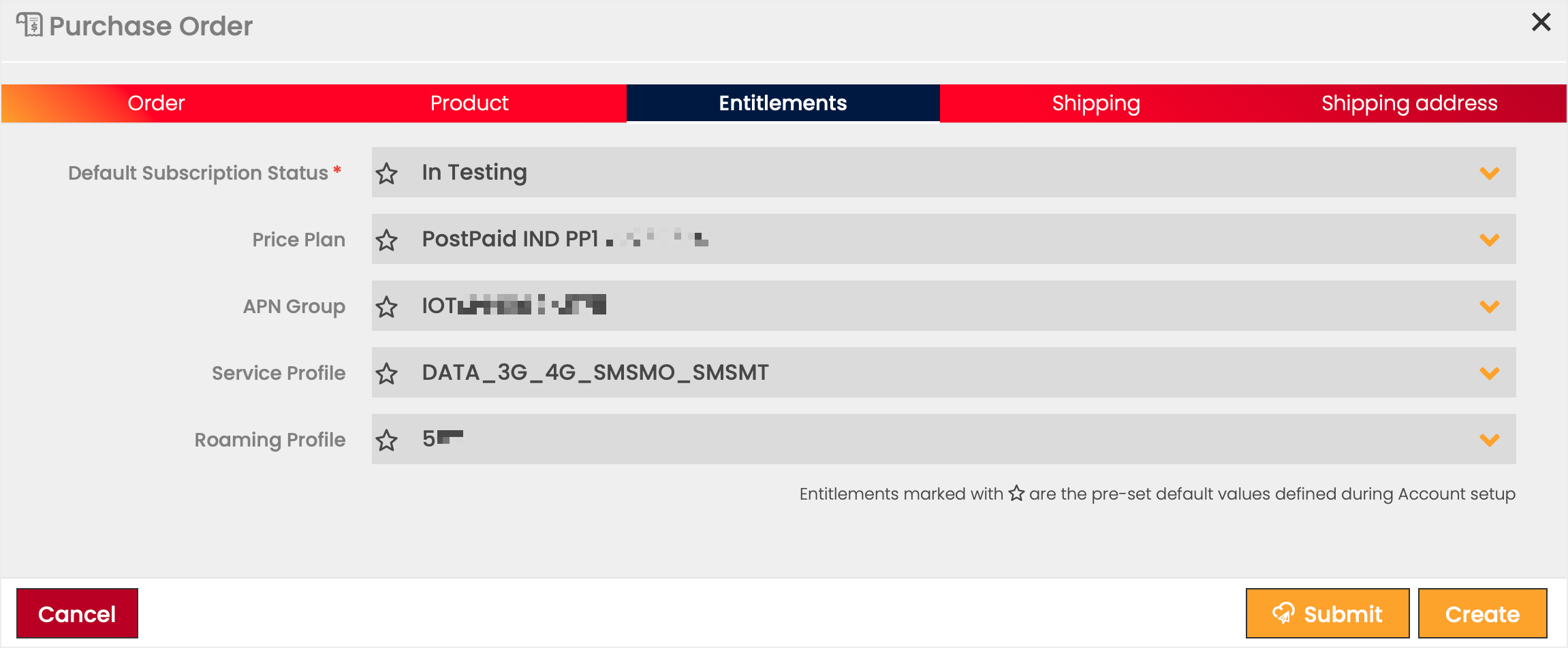
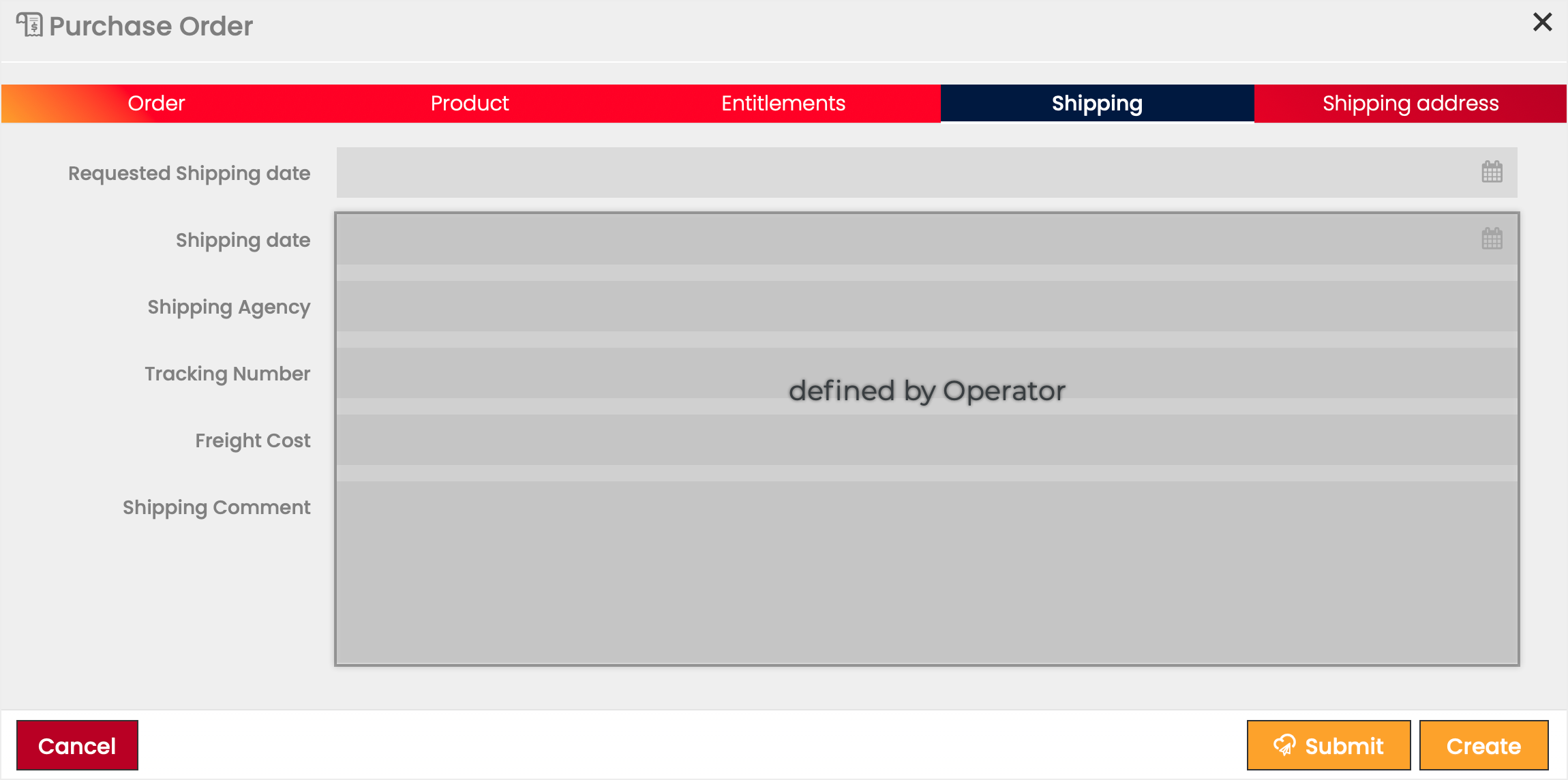
Note: Some of the fields cannot be defined by the Customer. These are to be defined by the Operator when the Purchase Order reaches status SHIPPED. - Specify the starting SIM Billing Status, Price Plan, Service Profile, Roaming Profile, and APN Group, in case the override of Account defaults is required.
Note:
Only options available for the selected Account are shown in the dropdown lists. Preset default values defined during Account setup are marked by an in the list.
Unless the override of default is explicitly selected, the default Product and Network Entitlements are used for the SIM(s). - Click Create to save the Purchase Order as a Draft, or select the
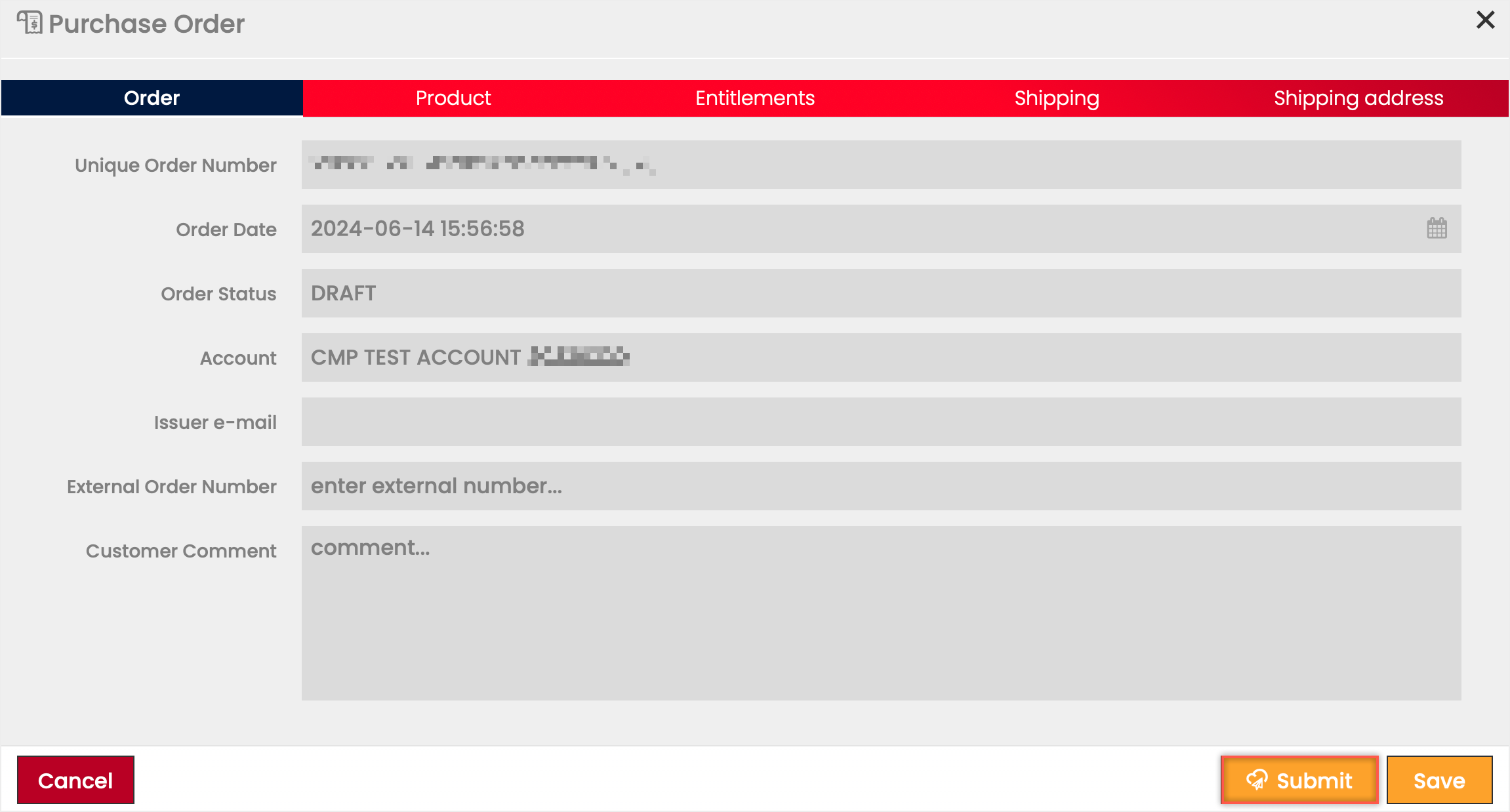 Submit option to send it for approval right away.
Field | Description | Field | Description |
|---|---|---|---|
Account | Account for which the Purchase Order is created. | Account SIM Sales Product | SIM Sales Product that is ordered via the Purchase Order. Note: Only SIM Sales Products of the selected Account are available for selection. |
Issuer e-mail | E-mail address of the Customer. | Quantity | Order quantity. |
External Order Number | Optional reference number provided by the Customer. | Price | Account SIM Sales Products item price. Read-only field, the price is automatically displayed after a SIM Sales Product has been selected. |
Customer Comment | Additional information provided by the Customer. | Currency | Currency in which the SIM Sales Product's price is defined. Read-only field, the currency is automatically displayed after a SIM Sales Product has been selected. |
Edit or Delete a Purchase Order
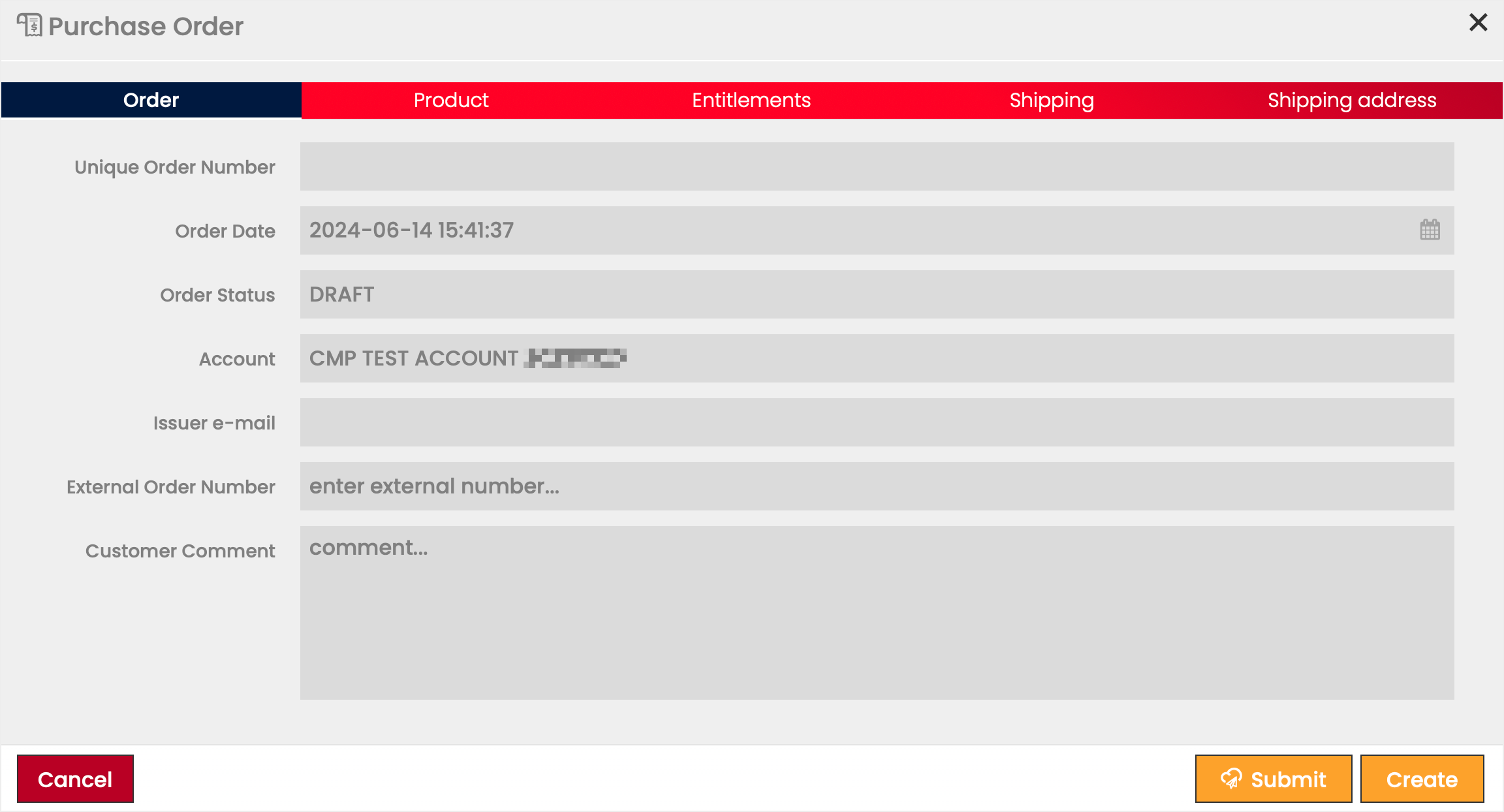
A Purchase Order in status DRAFT may be edited multiple times or deleted.
- Click the Edit
 icon to modify the settings seen in the Purchase Order creation.
 - Click the Delete
 icon to delete a Purchase Order.
Submit a Purchase Order
Note:
Define all details before submission. A Purchase Order submitted with minimal details is likely to be rejected by the operator.
To submit a Purchase Order:
- Select a PO that is in DRAFT status.
- Click on the Edit icon.
- Click Submit to send the PO to the Operator.
- Confirm you want to submit the Purchase Order.
Note:
If the CMP is configured accordingly, the Purchase Order can be submitted only after the User has accepted the Terms and Conditions.
